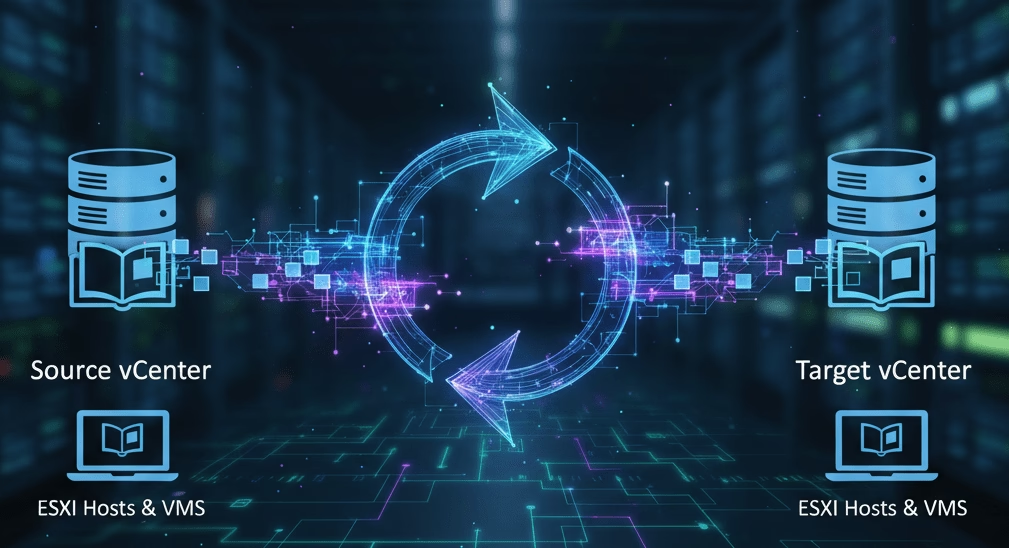
Using Content Libraries in VMC to deploy software faster
As part of my role spinning up new SDDC’s to test things is quite a common occurrence. This is both a blessing and a curse. The new SDDC is 100% Vanilla and perfectly self contained. Therefore you can do the testing required, knowing that you won’t impact anything else and you’re not inheriting a legacy setting from previous testing.
However the downside is you need to get the configuration and the software you require into the SDDC. This can take some time. For configuration it’s possible to use IAC tools like Terraform. To speed up the process of deploying software I decided to leverage Content Library specifically for this task. This is a much faster and more reliable way to get what I need into the SDDC.
William Lam has previously written about ways of doing this by utilising AWS S3 as the backend
Table of Contents
Prerequisites
- On-premises vCenter — a local vCenter instance to act as the publishing source. Any version supporting Content Library publish/subscribe (vSphere 6.0+) will work.
- VMware Cloud on AWS SDDC — the destination environment. The subscribing Content Library is created here.
- Network connectivity between source and destination — on-premises vCenter must be able to reach the VMC management network over HTTPS (TCP 443). Typically achieved via a Direct Connect or VPN connection to the VMC Management CIDR.
- Firewall rules — outbound TCP 443 from on-prem vCenter to the VMC vCenter IP, and the reverse for subscription synchronisation. Check your NSX gateway firewall in the VMC SDDC.
- Storage capacity in VMC — the Content Library occupies space on the VMC datastore. Factor in the size of your ISOs and OVF templates before enabling immediate sync.
- vCenter credentials — a user account with the Content Library > Create local library and Content Library > Create subscribed library privileges on both vCenter instances.
Introduction
For those unfamiliar with Content Libraries they are a storage medium for storing templates and ISO files for easy use within a vCentre environment or sharing with other vCentres. You can see some of the recent updates to this feature here
Networking
For this to work you need network connectivity between the source and destination vCentre. For my use case I use my on premises vCentre as the source and VMC as the destination. However you can use VMC as the source if preferable.

Usually I don’t utilise/DX for this although It will absolutely work over those connections and would be purely private IP
I have a NAT rule on one of my public IP’s on my Onprem Watchguard Firewall to connect through to the Onprem vCentre. The URL of my vCentre will publicly resolve to this IP. I have restricted this connection to only allow from the public IP of the VMC vCentre. For the VMC vCentre there shouldn’t be any changes required as outbound https is allowed by default on the management gateway.
Create Publishing Content Library
I already use content libraries extensively in my lab and didn’t need everything uploading to VMC. So I created a new Library just for this purpose and added some select software. If you don’t have a content library or need to create another one. These are the steps you will need to follow.
To create a new Library from the vSphere Client from the top menu select Content Libraries

Name the Content Library appropriately and add a description.

Configure the Content Library
As this will be the source Content Library we will set this to be a local content library and then enable the publishing feature to allow other vCentre’s to subscribe to this. I choose not to use authentication for this purpose as there is nothing sensitive

The next step is to define what Datastore the Content Library will reside on.
Here I am using my datastore called “ISO” as it saves my valuable NVMe datastore for workloads.

Ready to complete

Complete the creation and then go back into the Content Library settings. It will show you a Subscription URL which we will need later. Take a copy of the full Subscription URL

Create Subscribing Content Library
We need to repeat the procedure in VMC however now we need to create a Subscribed Content Library. Input the URL that we saved earlier

Download content option
There are two options for how you want the Subscribed Content Library to behave on first connection/new content. The first is to synchronise the content as soon as possible. This is what I use. However if you have a large catalogue and not all items are required in the VMC vCentre an option to save storage would be to only download content on demand. The downside to this option is that deployed would take longer, waiting for the item to synchronise before it can be used.
Conclusion
Content Libraries are one of those VMware features that solve a real operational pain point without much ceremony. Once the publishing/subscribing relationship is established between your on-premises vCenter and VMC, getting ISOs and OVF templates into a fresh SDDC drops from a manual upload process to a few clicks — or nothing at all if you enable immediate synchronisation.
The main trade-off to consider is storage vs. speed. Immediate sync keeps everything local and ready to deploy instantly, but it consumes datastore space even for templates you may never use in a given SDDC. On-demand download is more storage-efficient and works well when you spin up SDDCs infrequently, though the first deployment of any template will wait for the download to complete. For testing environments where time matters, I lean towards immediate sync for the templates I know I’ll use frequently, and on-demand for everything else.
If you’re already using Content Libraries on-premises, adding VMC as a subscriber takes under ten minutes. If you’re not using them yet, this is a good reason to start.