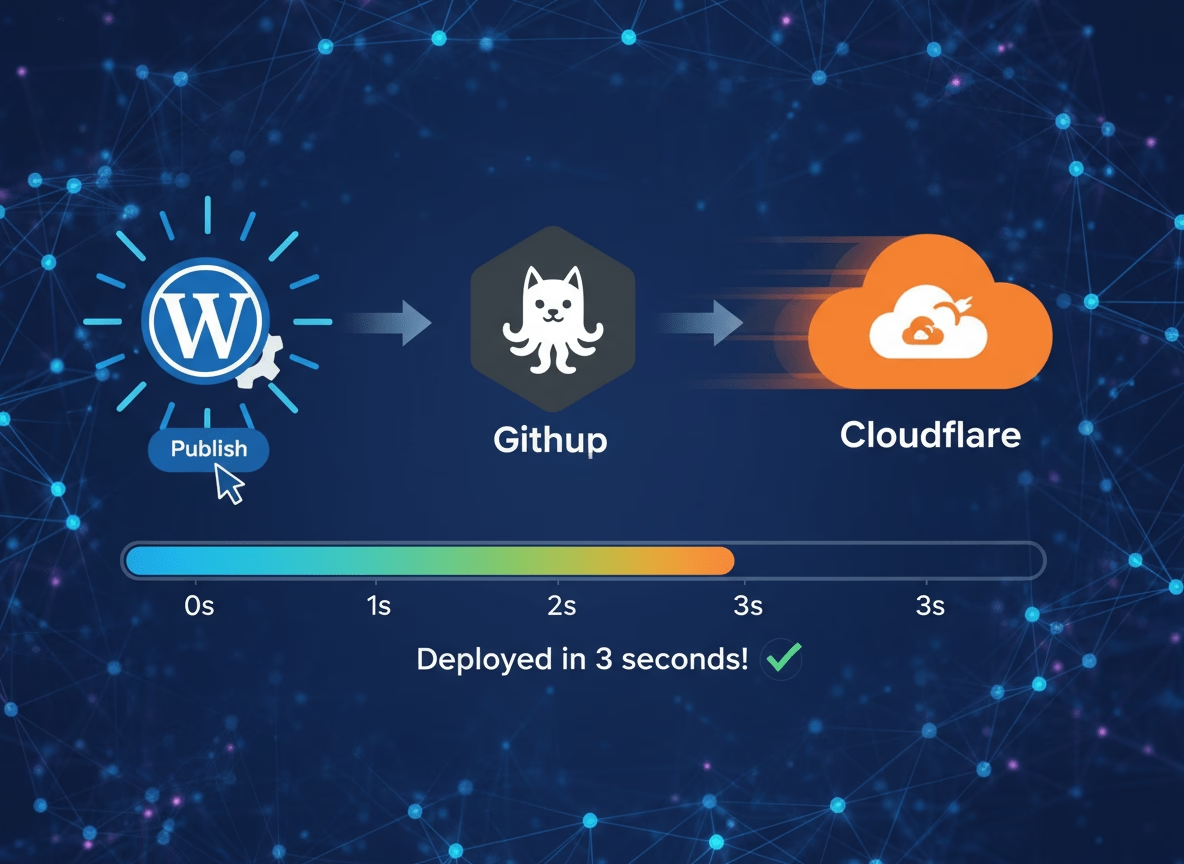
Web Development Improvements
I have spent the Christmas break making some improvements to this blog. A lot of these are in “the backend” These help improve the performance, Privacy, SEO, and I have also added some security best practices.
Most of these changes were done more as an exercise than due to a specific requirement. I also had a HUGE amount of help with some of these steps from a variety of AI tools. However Warp did the bulk of the heavy lifting. The repo behind the content of this site as well as the implementation is public in case you want to look deeper/steal anything.
Before we dig into the details it’s probably worth briefly summarising what is going on.

Solution Overview
Below is a condensed view of what the GitHub runner does.
- Connect to WordPress REST API
- Discover all posts, pages, categories, and tags
- Downloads the relevant HTML, CSS, JS, images, and fonts
- Replaces WordPress URLs from my authoring instance “WordPress.jameskilby.cloud” to the live site jameskilby.co.uk
- Processes WordPress embeds (Acast, YouTube, Vimeo, Twitter) as seen on the media page.
- Injects Plausible Analytics tracking code
- Corrects the theme
- Generates sitemap and redirects file
Table of Contents
Performance
I have split the performance section into two main components. The first is around making the public site faster. This is a critical component. I want the site to be fast for me and others. It obviously helps with site rankings as well. It was also an exercise in improving my understanding of web development and relevant optimisations.
Measure Site Performance with Lighthouse
To understand site performance, first you need to measure it. There are great tools like Gtmetrix.com that will generate a report on your site performance.
I decided to take this a step further. I have deployed a GitHub action that watches commits to the underlying repo. When anything changes in the public directory (i.e. the public facing website) the action is triggered. This action waits for 2 minutes for the public site to finish the deployment to Cloudflare Pages. It then runs the Google Lighthouse performance tests. Grabs the data and populates it in a few locations. This includes a slack message as shown below. It updates the stats page on the blog. Plus a full detailed report is available in GitHub. The full report is approximately 18MB and is available for 30 days.

Lighthouse measures the following metrics
- Performance Score
- Accessibility Score
- Best Practices Score
- SEO Score
- First Contentful Paint (FCP)
- Largest Contentful Paint (LCP)
- Time to Interactive (TTI)
- Cumulative Layout Shift (CLS)
Once you have a sensible baseline for your site you can start optimising it using the included recommendations. Below I have listed some of the improvements I have made.
Site Performance Improvements
Brotli Compression
Brotli is a modern compression algorithm and can achieve better compression ratio’s than gzip, therefore it makes it a good candidate for modern websites. This especially true for mobile devices where connection speed can be constrained. Brotli typically gets an extra 15-25% compression above what gzip can offer.
I have added a step to the deployment runner to compress the static files with Brotli I.e. html, css and javascript etc. This produced some significant space savings: The below stats are taken from the last run.
Original size: 6,894,868 bytes (6.58 MB)

 Compressed size: 1,193,382 bytes (1.14 MB)

 Space saved: 5,701,486 bytes (5.44 MB)

Average compression: 82.7%The job is setup to compress the files and upload both the Brotli compressed files and the standard ones. Cloudflare will serve Brotli assuming the end client supports it or fallback to legacy if needed for outdated browsers.
Local Font Hosting
Prior to this change I was using Google fonts however In my aim to be more privacy focused and also improve the site performance the deployment job now swaps these out for local fonts (served from the jameskilby.co.uk domain within Cloudflare) This means that less DNS lookups are required for the site and Google is not aware of site visits from analysing requests for fonts.
Lazy Loading
Lazy loading is applied to the images on the page “below the fold” This allowed for anything that needed scrolling to be viewed to be loaded in the background.
DNS Prefetch and Connection
Most of the website content resides on jameskilby.co.uk served directly from Cloudflare however the analytics run by plausible is on a separate domain plausible.jameskilby.cloud This resides on a dedicated VM in my lab.
I have created a step in the deployment workflow to DNS prefetch for plausible.jameskilby.cloud and preconnect for plausible.jameskilby.cloud
I have also made this an async connection so that the loading of the stats doesn’t impact the site loading performance. This change had to be excluded from the Cloudflare Rocket processing using data-cfasync=”false”
Extract inline CSS to external file
Doing this reduces the size of the individual HTML files. Rather than having all of the CSS in every HTML file the CSS is split out into a dedicated file. This also allows the CSS file to be reutilised.
Image Optimisation
I have added steps to optimise the images on the site using AVIF. I then have a script to modify the WordPress HTML Image element with a picture element. This enables serving multiple file types where the source browser can choose. AVIF has good modern support and excellent compression ratio’s. However it makes sense to have a backup available just incase. One of the downside’s of the AVIF format is the encoding can be quite slow. However the workflow creates a MD5 of the source images and creates a cache and therefore will only optimise new or changed images. This took a long time to get right that were mainly down to ordering problems in the execution.
Favicon
One of the steps I did during optimisation is provide one of my AI tools the har file of my site. I then asked it to suggest recommendations. One of them was that the Favicon was very large. Initially I did not understand this. On further digging it correctly identified that the issue is that /favicon.ico is returning the full HTML homepage instead of an actual icon file! This is a Cloudflare Pages configuration issue. As Cloudflare will serve the homepage rather than a 404 error message. It then helped me create an optimised version from the logo that was 1.6KB rather than 200+ KB that was initially being served.
GitHub Runner Performance Improvements
I have made a number of changes in the runner that GitHub executes the deployment. Some of these are to improve the performance of the deployment run as it had got quite lengthy. At its worst it was taking 24 minutes to fully execute. However with the below changes, this has been brought down to approximately 3-4 minutes. This is despite the fact that additional steps have been added.
Incremental Build
The Incremental build step stores metadata about posts, pages, and assets
this includes hashes of the content the last modified time and the last build timestamps
When querying the WordPress API for changes it uses the modified_after parameter to fetch only content changed since the last build before building the site.
Secret Scanning
As the site is basically in GitOps fashion. I decided to add some best practices into the workflow. One of them is “Secret Scanning”. This is implemented in two places.
Pre-Commit
The first part is done as a pre-commit this stops me committing anything classed as a secret into the repo in the first place.
Github Action
This action scans entire repository history for secrets and sends a slack alert if a secret is found.
I created a test file and checked it in to Git
# Test configuration file for secret scanning workflow
# This file contains a FAKE secret for testing purposes only

# Fake API Key (for testing secret detection)
API_KEY=sk_test_51ABCDEFGHIJKLMNOPQRSTUVWXYZabcdefghijklmnop1234567890

# Fake AWS Access Key (for testing)
AWS_ACCESS_KEY_ID=AKIAIOSFODNN7EXAMPLE

# Fake GitHub Token (for testing)
GITHUB_TOKEN=ghp_1234567890abcdefghijklmnopqrstuvwxyzABCD

# Fake Database Password (for testing)
DATABASE_PASSWORD=super_secret_password_123456

# Note: These are all FAKE credentials for testing the secret scanning workflow
# They are not real and cannot be used to access any actual services

I have configured the gitleaks.toml to exclude the “public” folder within the repo as I may show example usernames/passwords in blogposts.
Content Improvements
Below are some of the changes that I have introduced that are visible to site users.
Freshness Indicator
The deployment wizard also adds a freshness indicator to each page
Ie (Published: January 06, 2018, Updated: July 10, 2024) This is injected at the top of the page, it is only injected if there have been multiple versions of the site.
Removes WordPress footer fluff
Anything not needed for the static site is removed.
Copy Buttons
For every code block on the site a copy function is injected as seen below
Example Code BlockTheme Injection
The WordPress theme I’m running on the authoring site is just a vanilla site. The runner updates the CSS/theme at build time inspired from https://justfuckingusecloudflare.com
SEO
To help with the SEO the runner builds at execution:
- Sitemap Generator
- RSS Feed
- Robots.txt
- Security header
Markdown
The last thing the runner has been configured to do is to create a Markdown version of each post. In the AI world we are living in this makes sense for them to consume in this function. A step is also included to create a link to the Markdown version at the very bottom of each page.
Change Log and Stats
Lastly we generate the two public pages to give visibility on the above.